One app. A lot of ways to use it.
MARC started with a simple idea: checking and working with your Mac shouldn’t require a handful of different apps. Here’s how the tools fit together, with real screens and practical examples.
Free and open source under the MIT License. Built for people who want to do more from their iPhone.
Explore use cases ↓Check in on your Mac
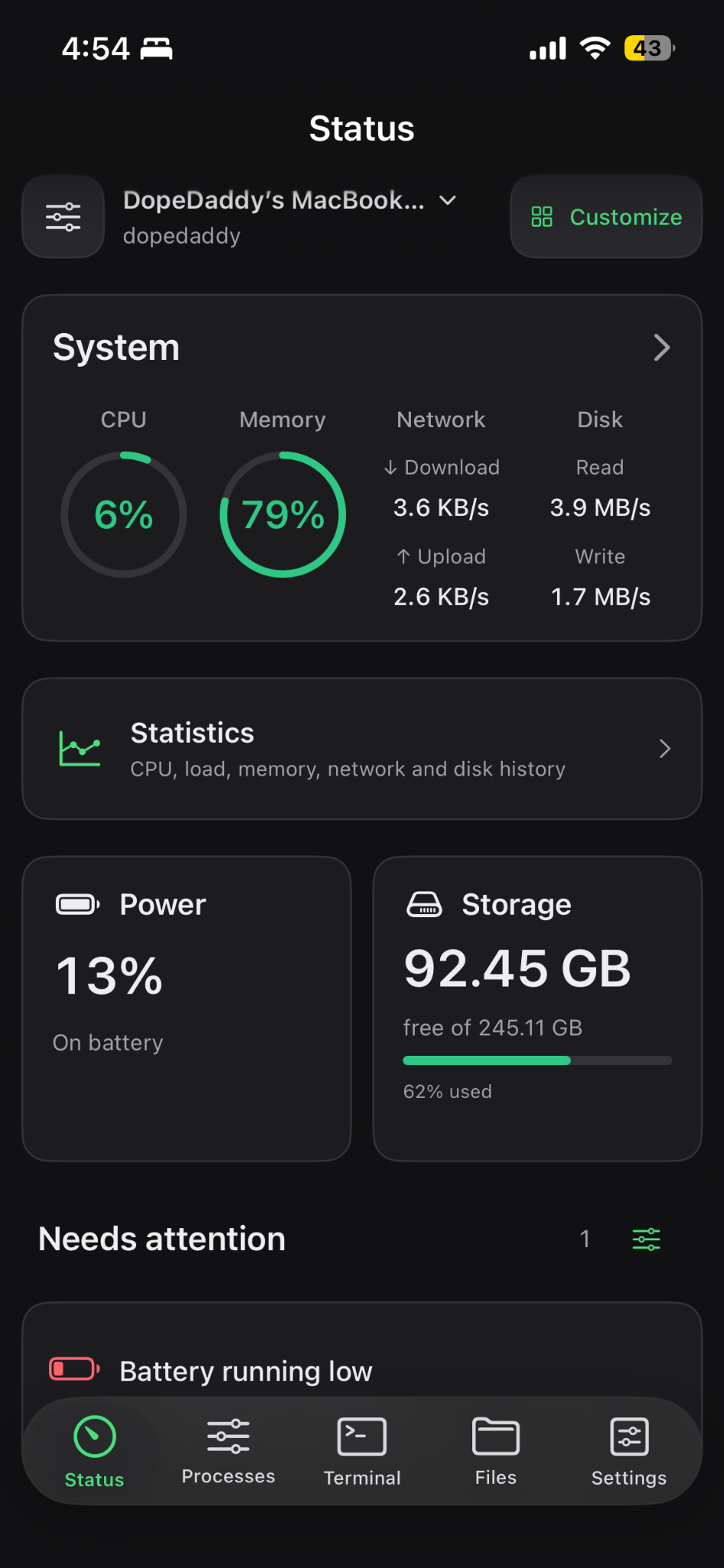
Your Mac might be building an app, downloading a large file, or running a task in the background. Open MARC to see how it’s doing. The Status screen brings CPU, memory, battery, storage and network information together, so you can check your Mac without walking back to it.
Great for long-running downloads, builds and everyday system checks.
See more than a single number
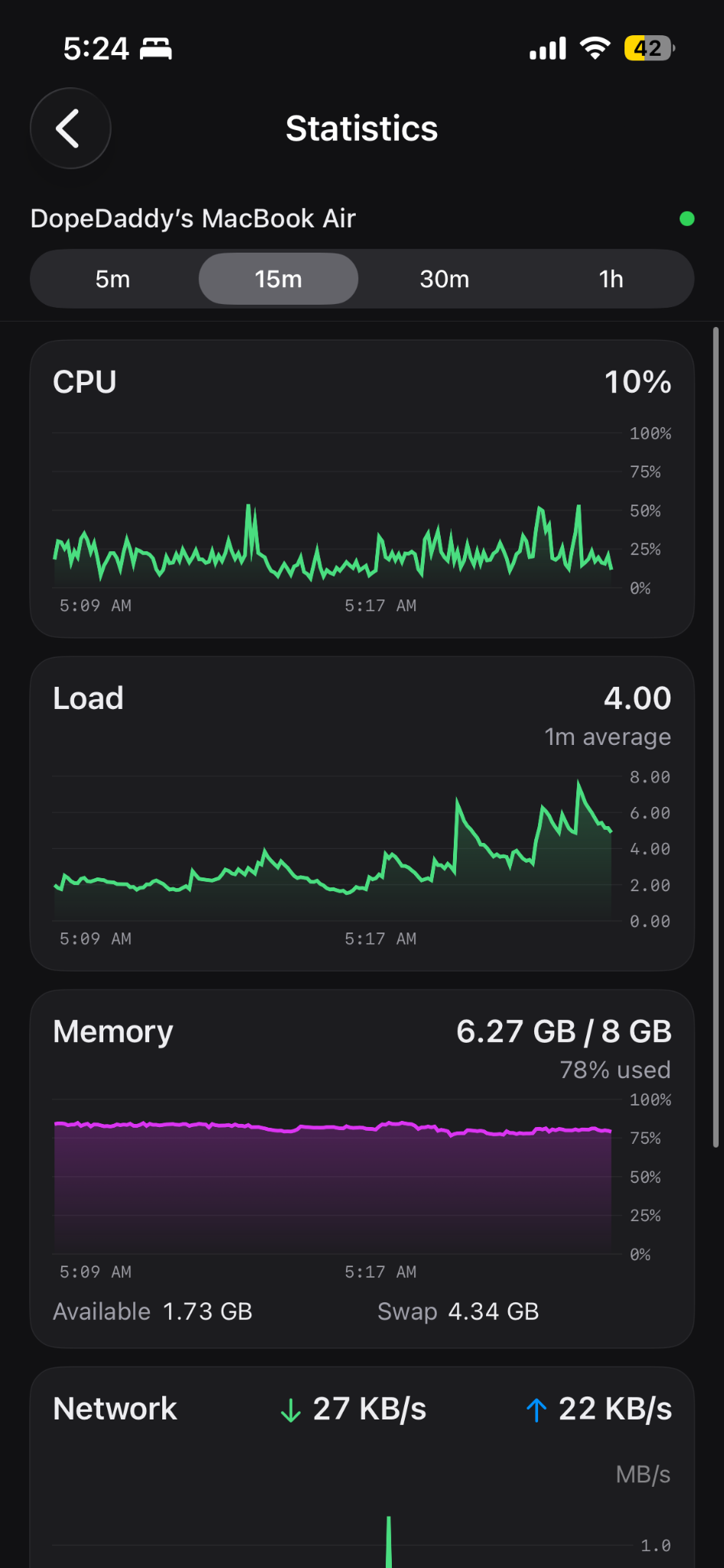
A single CPU number only tells part of the story. Statistics shows how usage changes over time, with charts for CPU, system load, memory, network and disk activity. It’s useful when you’re checking whether a build, script or background task is putting extra pressure on your Mac.
Switch between 5-minute, 15-minute, 30-minute and 1-hour views.
Find what is using your resources
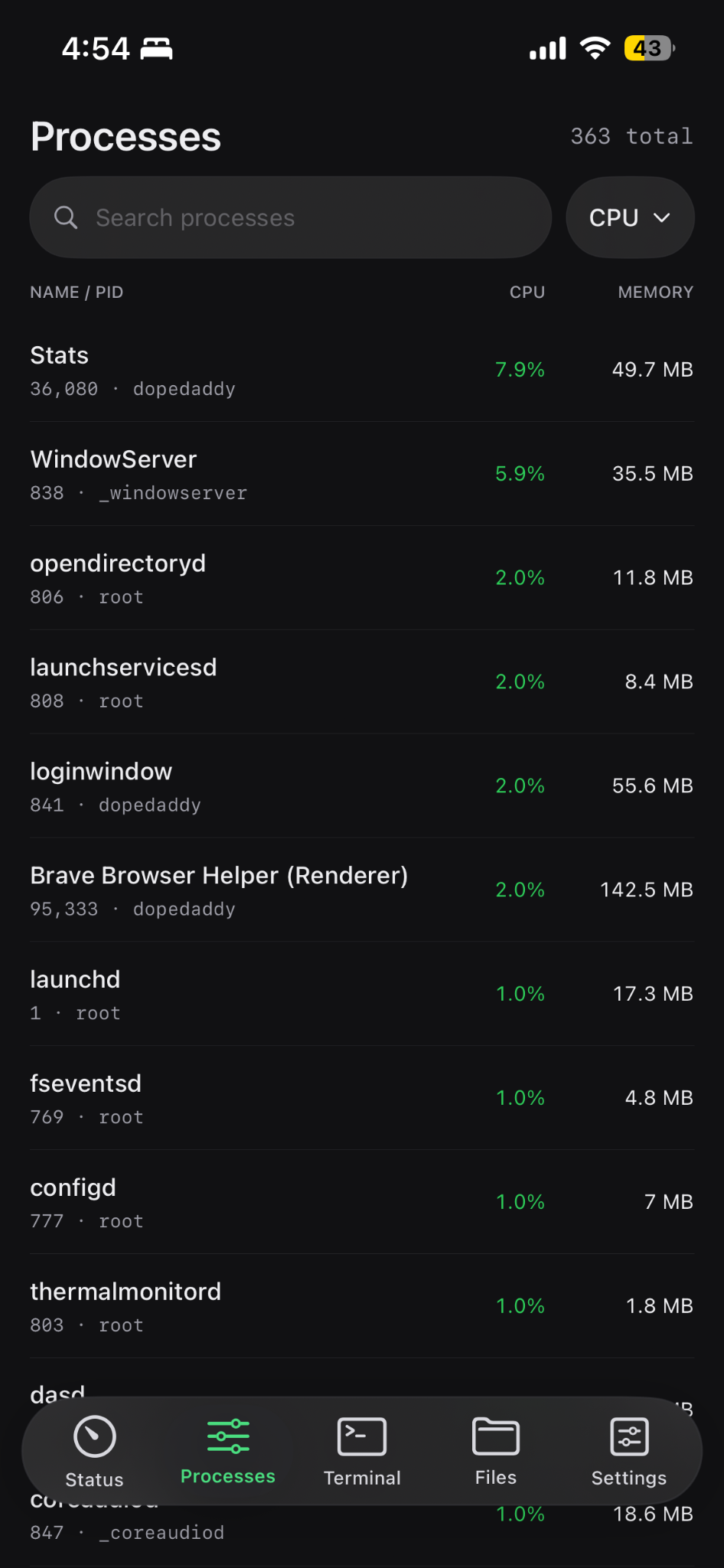
When your Mac slows down or a program stops responding, open Processes to see what’s running. Search for an app or task, compare its CPU and memory usage, and inspect the process before taking action. If you choose to terminate it, MARC sends the request to your Mac over SSH using your connected account’s permissions.
Terminating a process can close an app or stop unsaved work. Check what it does before confirming.
A real shell from your iPhone
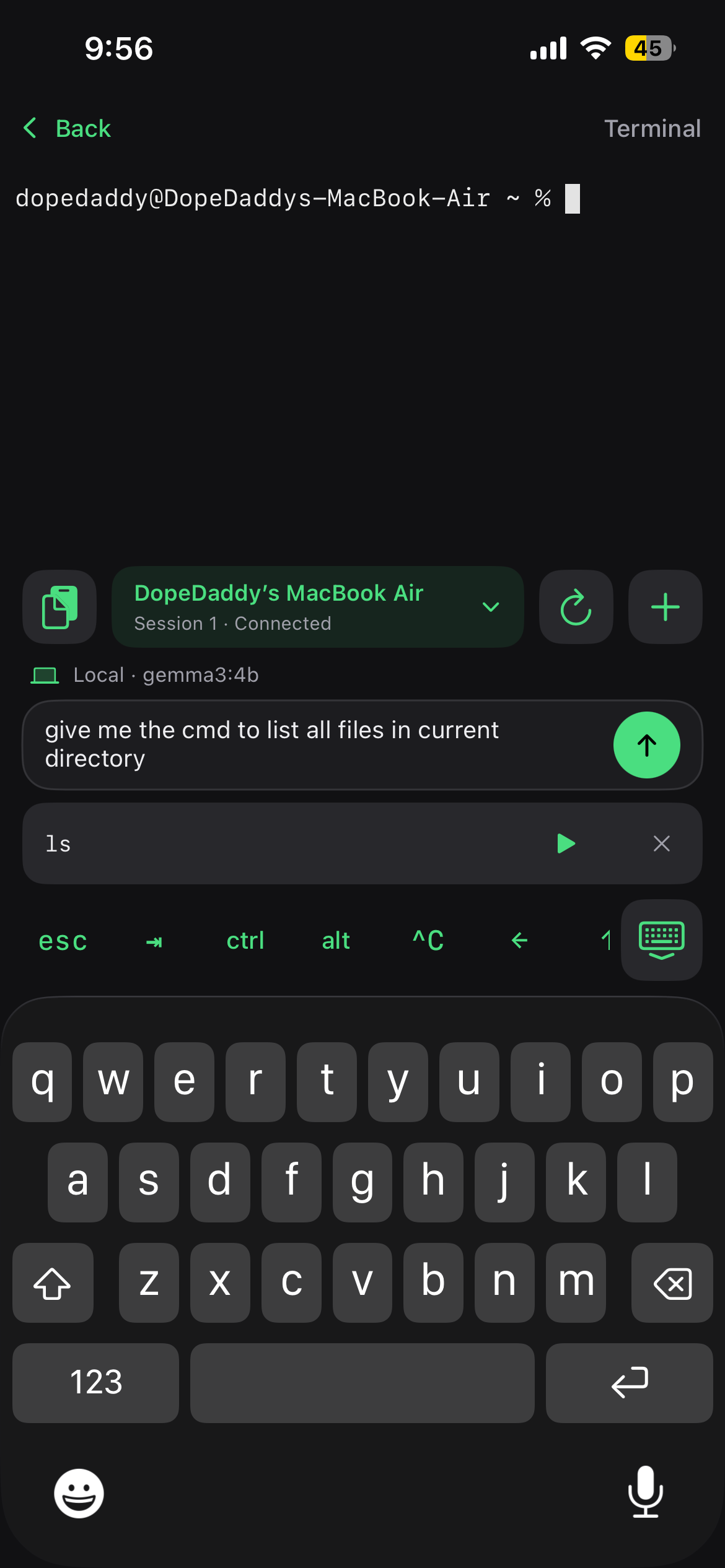
MARC gives you a real shell on your Mac through SSH. Check a running service, read logs, run a script, or work on a project without switching to your laptop. Open multiple terminal sessions when you want to keep different tasks separate. Optional AI suggestions can help with everyday commands. They start Off, and you review a suggestion before choosing Run.
This is a real terminal, not a simulation. Commands execute on your Mac with the connected user’s permissions.
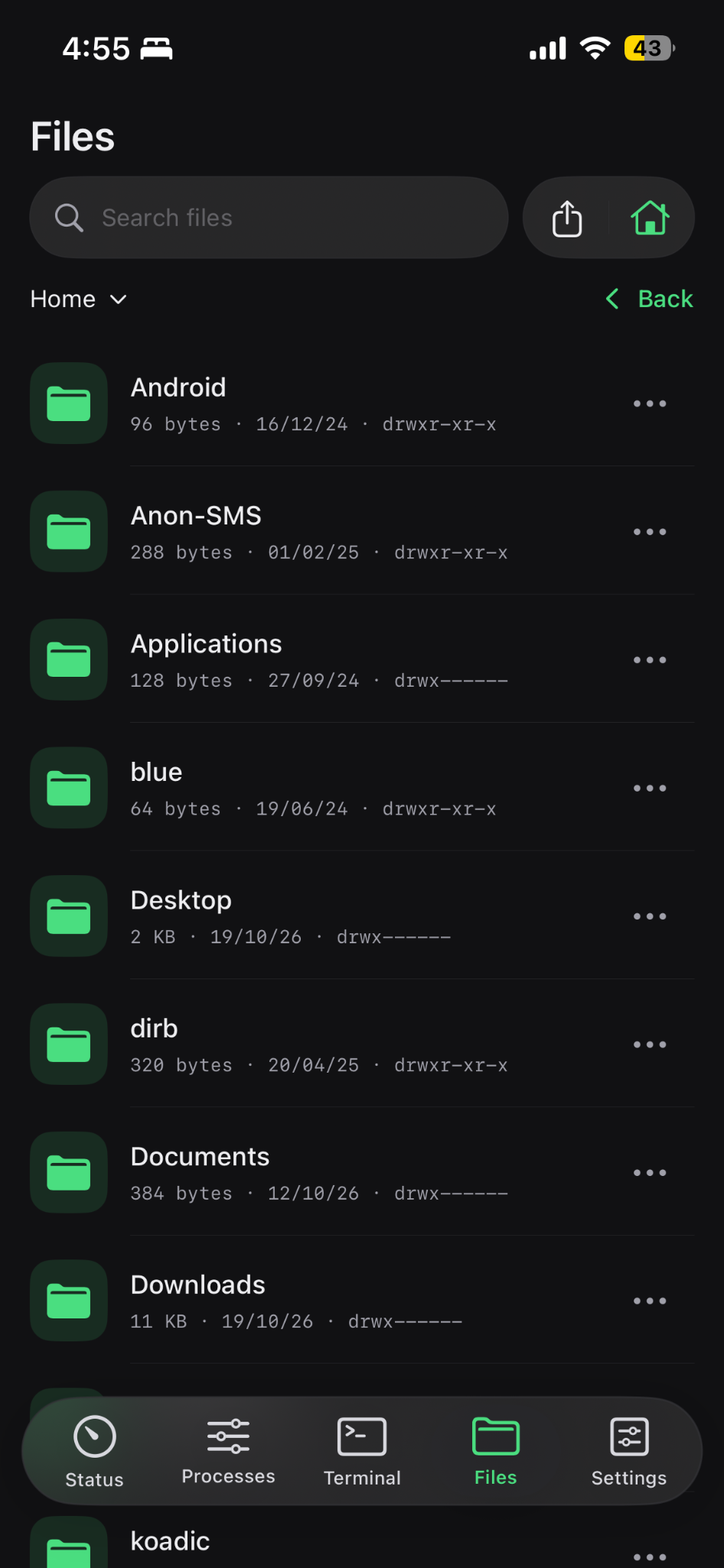
Work with files without opening Finder
Open folders on your Mac from your iPhone and find the file you need. Preview supported files, download a copy to your phone, or upload something back to your Mac. You can also rename, move, and organize files without opening Finder. MARC uses the secure SSH connection for remote file operations and transfers.
You can only access files your connected Mac account is allowed to use. Be careful with moves and deletes.
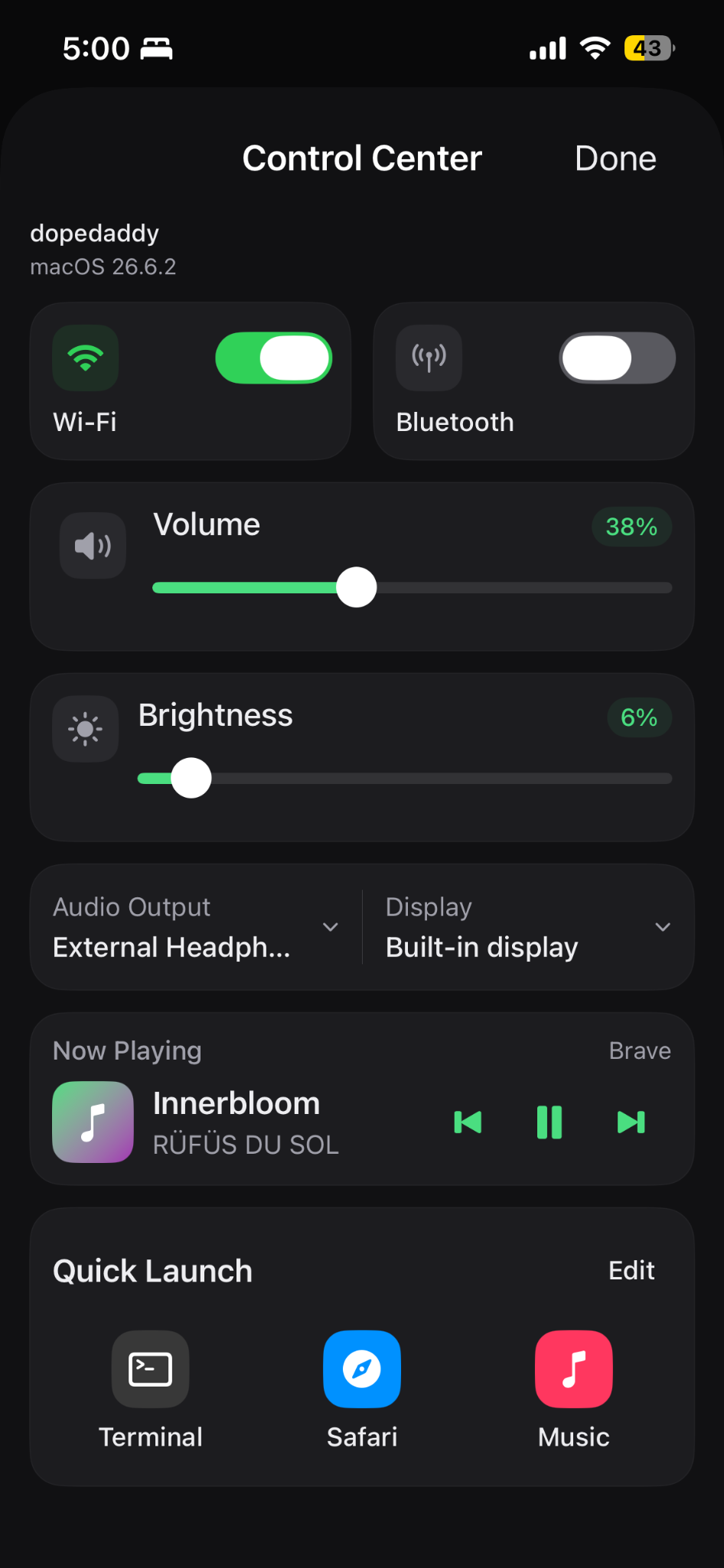
The small controls you reach for every day
Control Center brings together everyday Mac controls and your chosen Quick Launch apps. Adjust volume or brightness, manage supported Wi-Fi and Bluetooth controls, control media playback, select available audio or display options, and launch apps from your iPhone.
Available controls depend on hardware, macOS permissions and any required helpers. Some external displays and audio outputs do not support software adjustment.
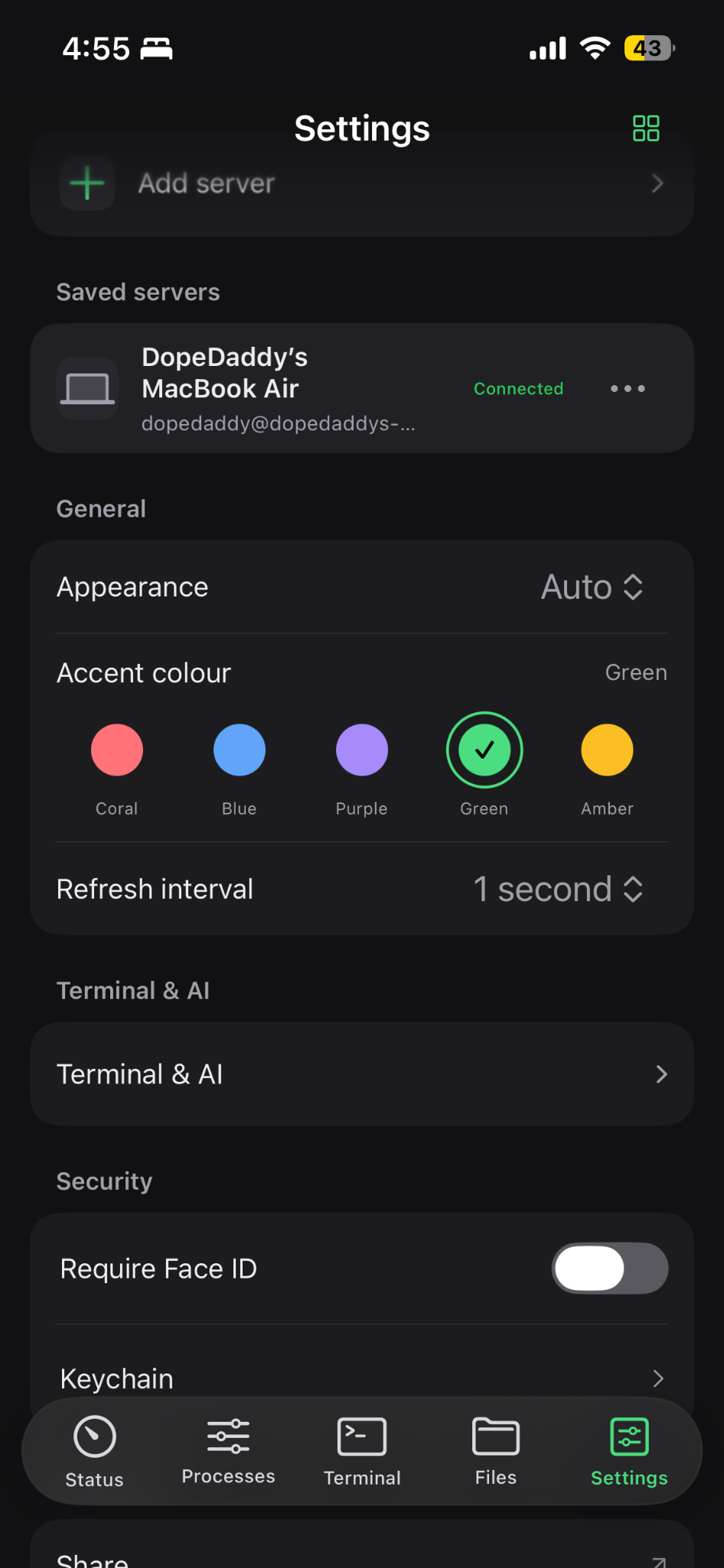
Set it up your way
Add your Mac manually or discover nearby Macs on your network. Save connections, choose an accent colour and refresh interval, and use the available security settings. MARC verifies SSH host keys so you can check which Mac you’re connecting to, while supported credentials are stored using the iPhone’s Keychain.
MARC connects over SSH. Access outside your local network requires separate secure network configuration.
Your Mac, from your iPhone.
MARC is free and open source. To get started, enable Remote Login on your Mac, connect your iPhone to the same network, and add or discover your Mac in MARC. Check its SSH host-key fingerprint when prompted. MARC currently connects over SSH; access beyond your local network needs separate, secure networking. MARC supports iOS 18 or later. API providers may charge for their services; Local AI requires Ollama and an installed model on your Mac.